Raise kids who thrive online and off
Designed with child psychologists and supported by research.
Parenthood partners:
-
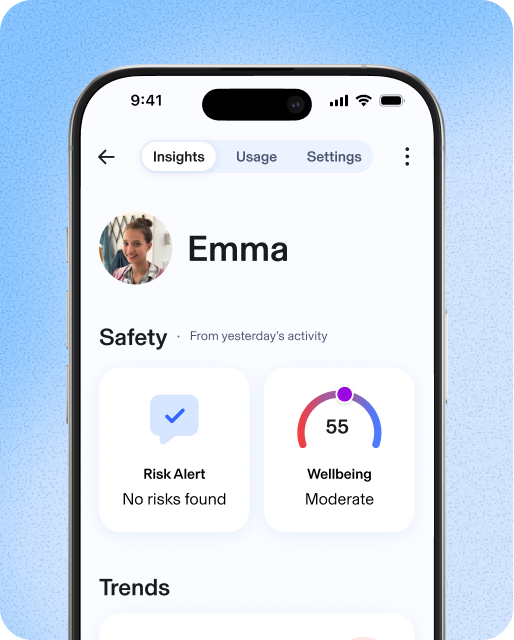
Day 1: Protect
We start by blocking explicit content and establishing a baseline of digital habits.
-
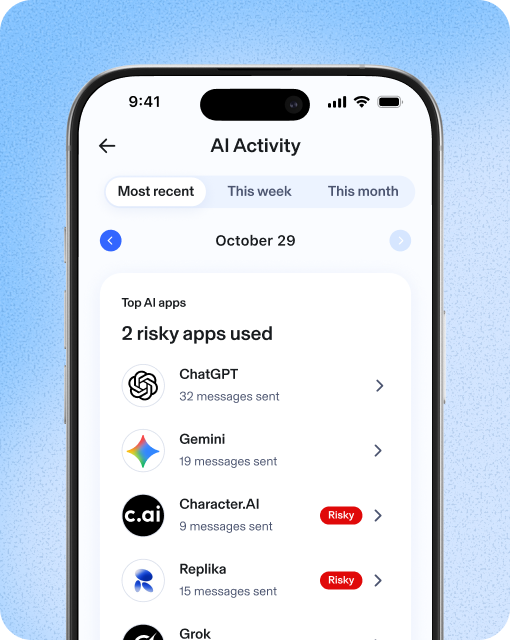
Day 2: Observe
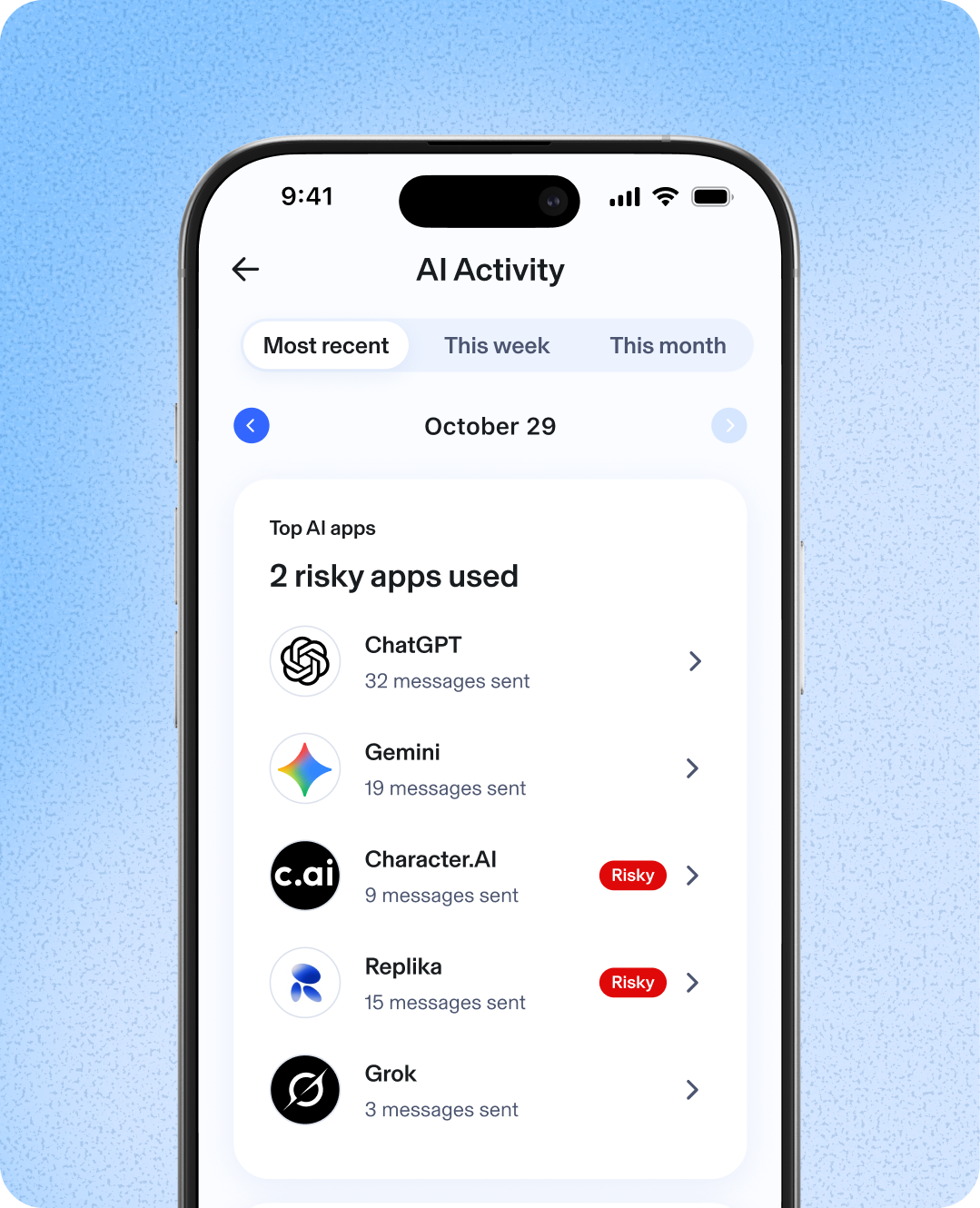
See early insights into AI chats and social media messaging.
-
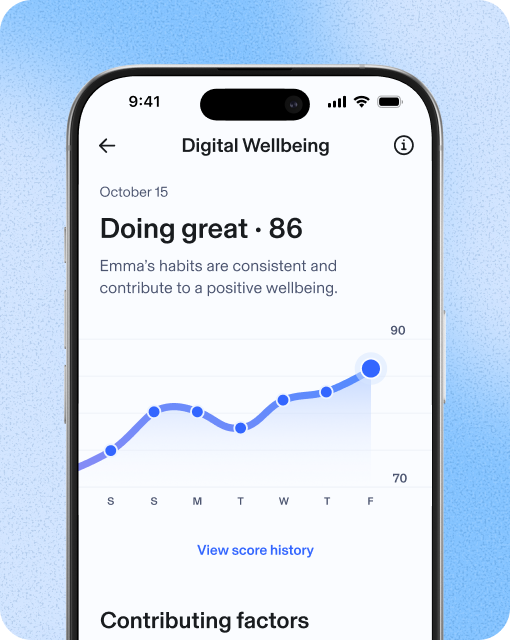
Day 4: Understand
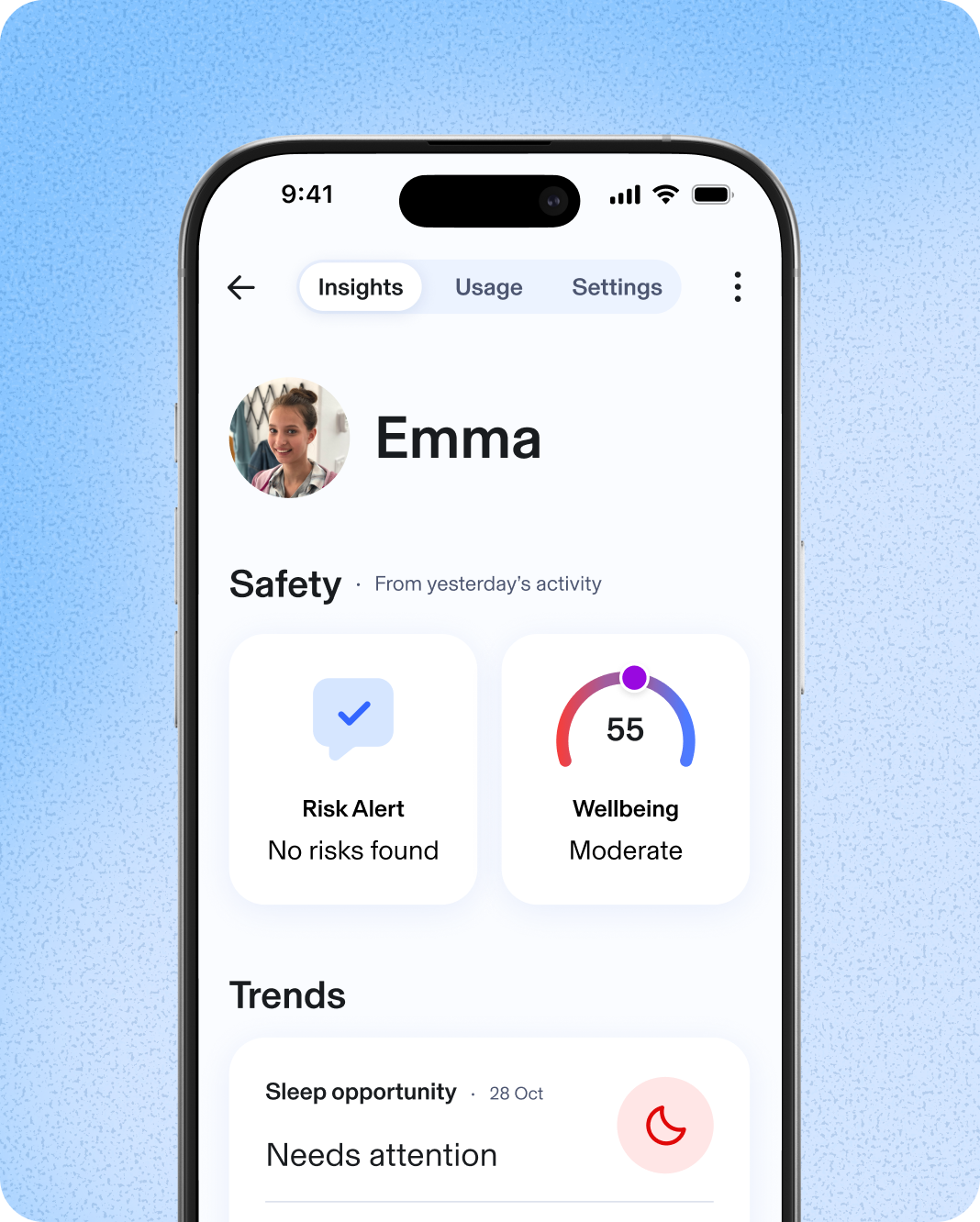
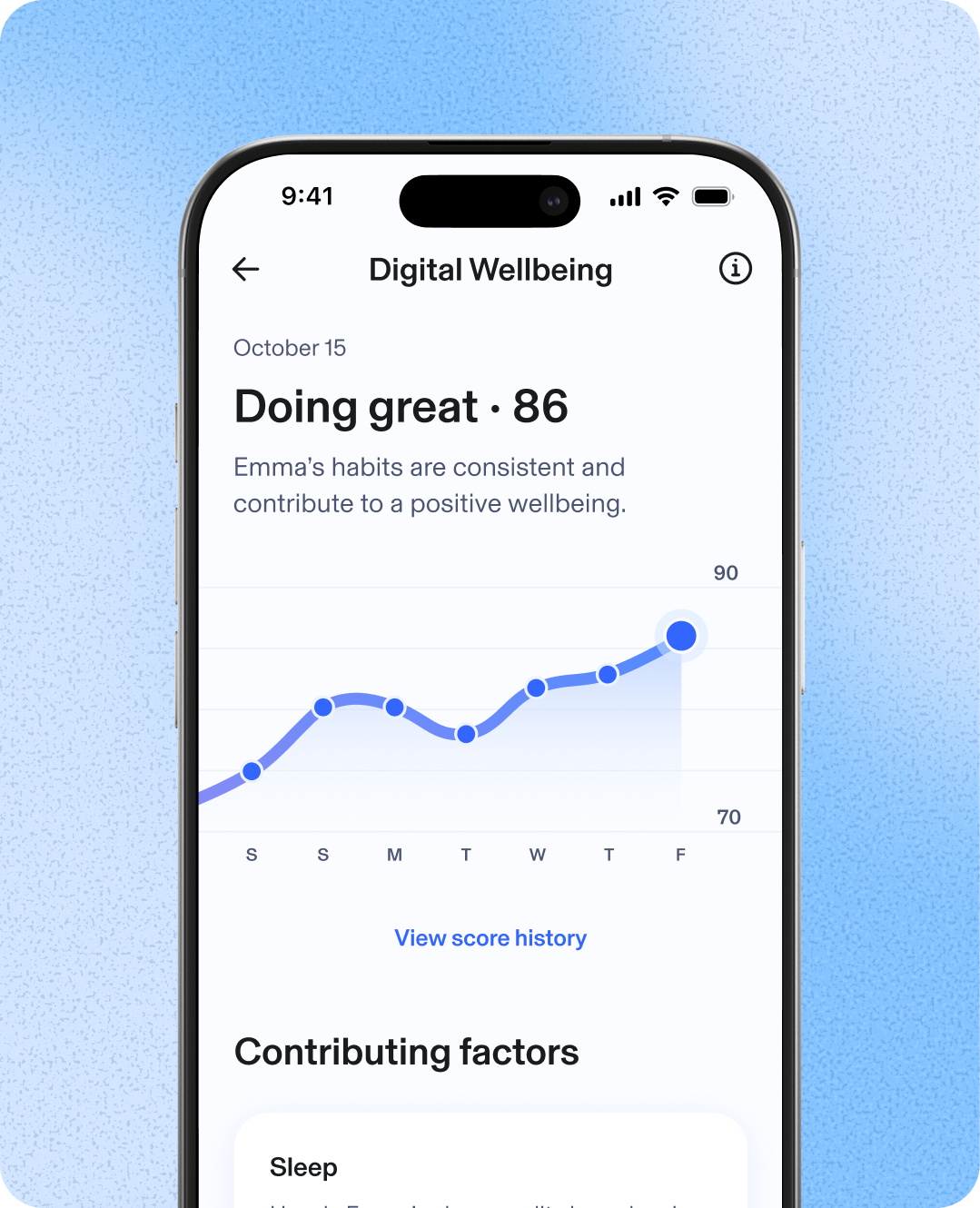
Your kid’s Wellbeing Score appears—built using multiple behavioral signals to help you see changes.
-
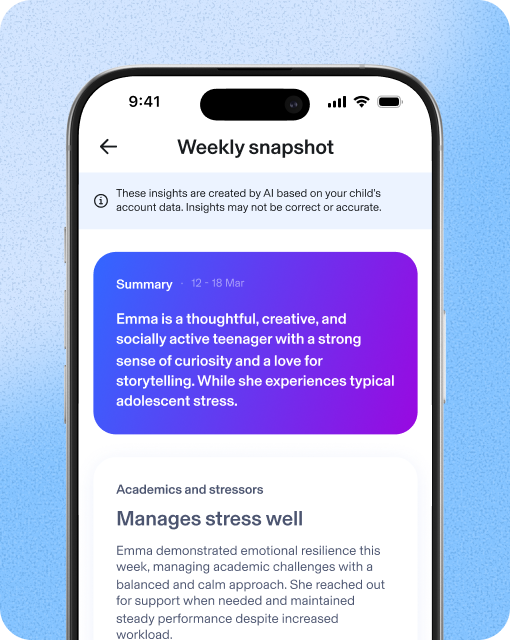
Day 7: Connect
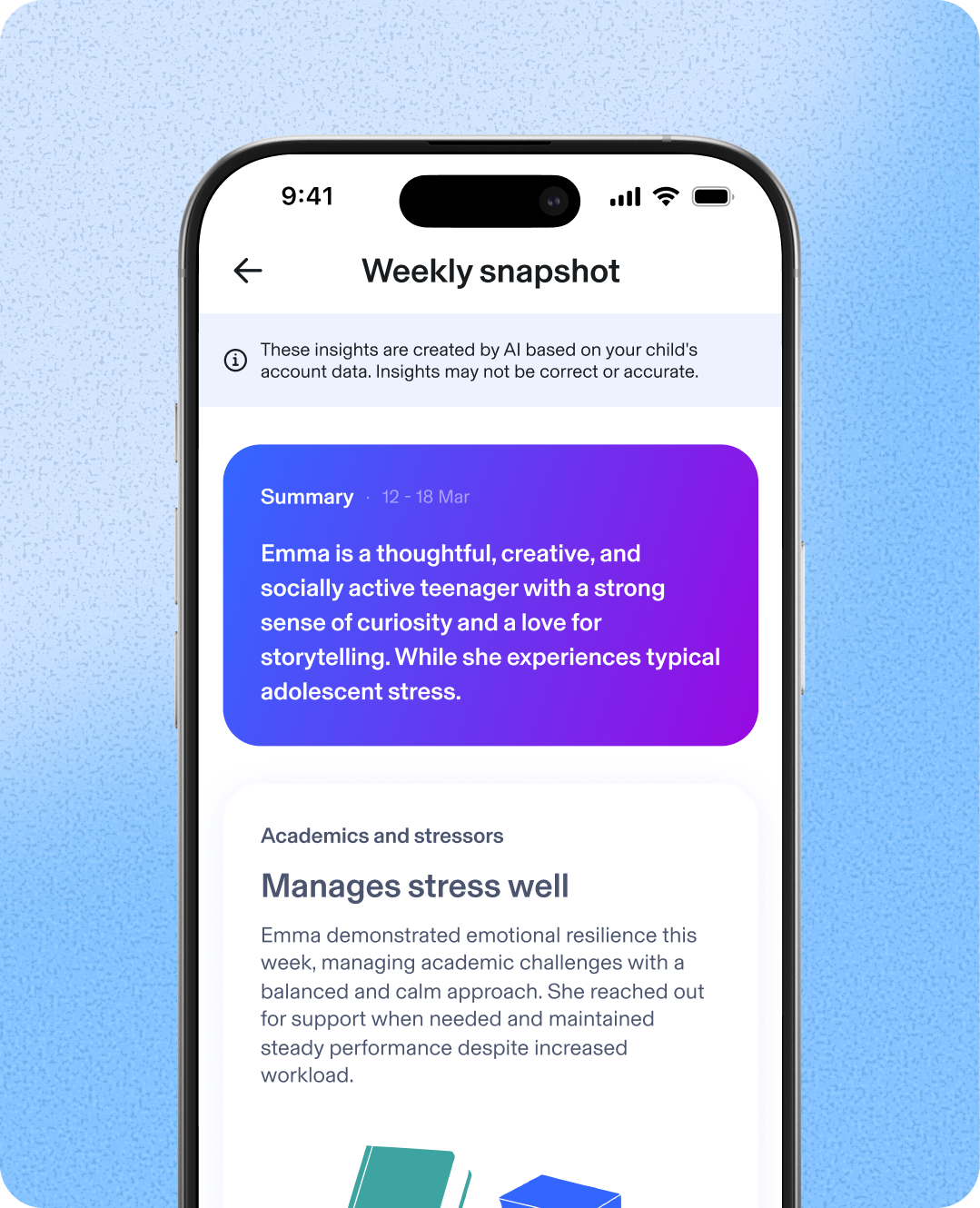
The Weekly Snapshot shows the highlights of weekly online activities to support ongoing conversations with your kid.
-
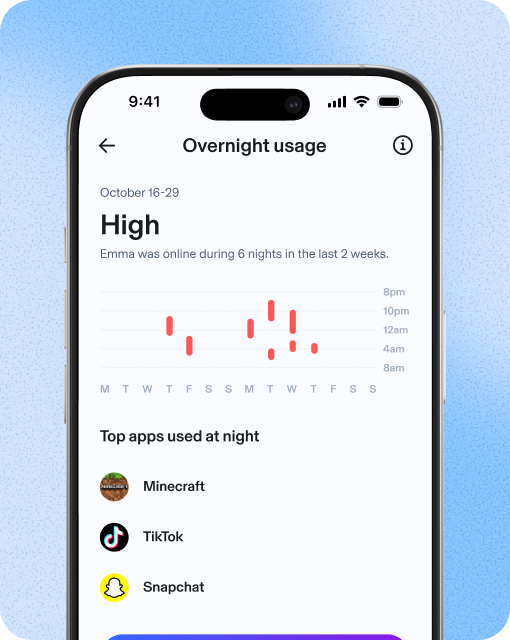
Day 14: Support
With 2 weeks of activity data, we provide insights on trends to help you see changes in their online life.
How it works
From digital blind spots to clear insights
-
Day 1: Protect
We start by blocking explicit content and establishing a baseline of digital habits.
-
Day 2: Observe
See early insights into AI chats and social media messaging.
-
Day 4: Understand
Your kid’s Wellbeing Score appears—built using multiple behavioral signals to help you see changes.
-
Day 7: Connect
The Weekly Snapshot shows the highlights of weekly online activities to support ongoing conversations with your kid.
-
Day 14: Support
With 2 weeks of activity data, we provide insights on trends to help you see changes in their online life.
“It’s easy to set up and use—which can often feel like half the battle—and works seamlessly with both iPhone and Android devices.”
Best Overall Parental Control App, 2025
AI Chat App Alert
Introducing AI Chat App Alerts — get alerted when it matters
Alerts: Get notified when your child starts a conversation with a high-risk AI chat app.
AI Chat Insights: See AI app message volume and tone so you know when to check in.
Build healthy online habits
-
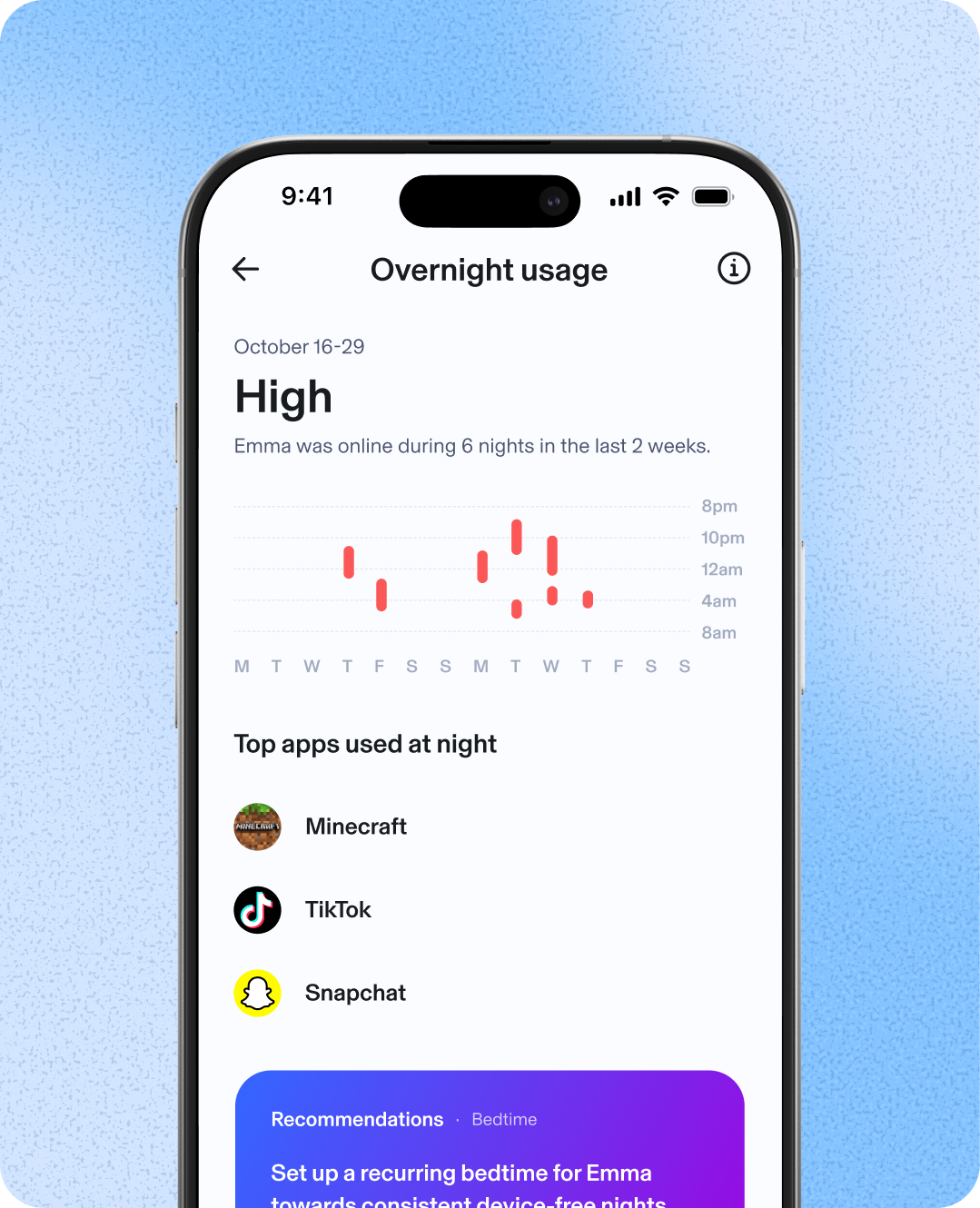
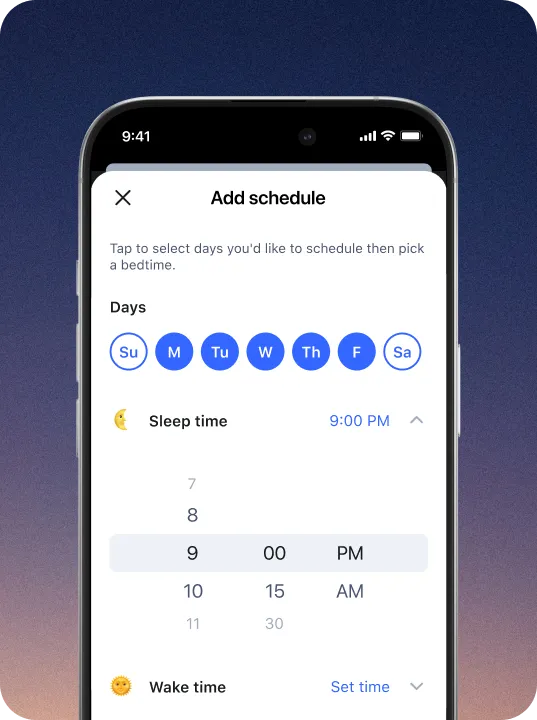
Bedtimes
Set Bedtimes for weeknights and weekends. When bedtime rolls around, all devices associated with your child’s profile will automatically disconnect from the internet.
-

Focus Time
Focus Time lets you set times during the day with limited or no Internet distractions, where only selected apps and websites are allowed.
-

Time Limits
Know that your kids are safe from too much of a good thing—the internet. Set time limits for apps and websites and customize per child profile.
-
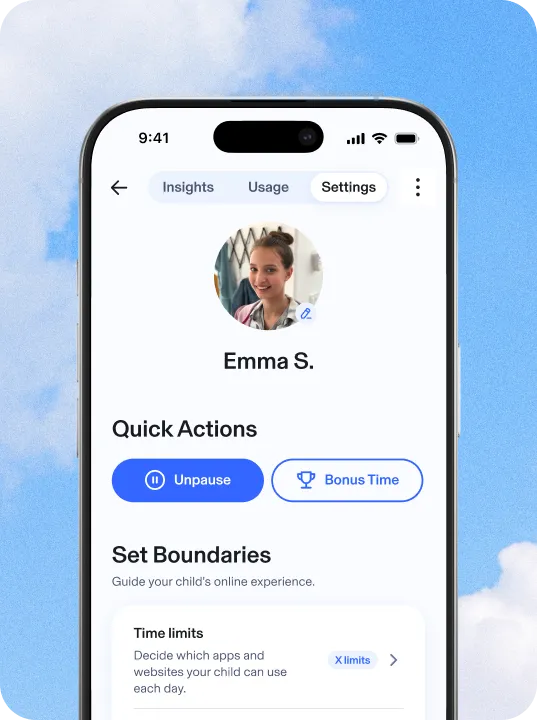
Pause the Internet®
No more asking your kids three times to set down the iPad and start their homework. Pause the Internet easily enforces screen time limits.
-

Bonus Time
Extend your kid’s daily time online with Bonus Time to reward good behavior or celebrate successes.
See why families love Aura Parents
= Developed in partnership with clinical psychologists
| Features | Aura | Bark |
|---|---|---|
|
Content Filtering
Set a filter level for each family member. |
||
|
Screen Time Limits
Customize Screen Time Limits for each kid's profile and set different limits for apps, categories of sites, and a Daily Time Limit. |
||
|
Focus Time, Bedtime, and Schedules
Set Bedtimes, Focus Times, and custom Schedules to restrict apps at certain times or disconnect from the internet altogether. |
||
|
Pause the Internet®
Pause the Internet at the press of a button. Hit unpause when you're ready to give back their internet access. |
||
|
Daytime & Nighttime Usage Trends
View trends in your kid's online usage and routines, as well as shifts in their social interactions, daytime activity, or sleep habits. |
||
|
Wellbeing Score
Understand how consistent your kid’s digital wellbeing is with a unique indicator based on digital signals. |
||
|
Messaging Insights
See where your child is messaging—across games, social media, and texts—and understand tone, volume, and timing. |
||
|
Weekly Snapshot
Get the highlights of weekly online activities to support ongoing conversations. |
||
|
AI Chat App Alert
Get notified when your child starts a conversation with a high-risk AI app. |
||
|
AI App Monitoring
See which AI apps your kid is using and understand overall tone and themes in messaging activity. |
||
|
Risk Signals
Get alerts when conversations may discuss self-harm. |
Get the insights you need to guide and protect your child online with Aura Parents
Covers unlimited kids and devices

Aura Parents
Plan covers unlimited kids & unlimited devices!
Available on iOS (phones and iPads) and Android (phones and tablets).*
Parental Controls
-
-
Block Apps & Websites
Keep out distractions and harmful content. -
Set Screen Time Limits
Help your child build healthier habits. -
Create Focus Times & Bedtimes
Schedule device-free time for school, sleep, or family.
-
Block Apps & Websites
-
-
Pause the Internet®
Pause online access with one click. -
Safe Gaming by Kidas
Get notified of risks in gaming chats.
(Windows PC only)
-
Pause the Internet®
Online Wellbeing Insights
-
-
Messaging Insights
Find out which apps your child is using to message. See message volume and tone. -
Daytime & Nighttime Usage Trends
See patterns in daily routines and overnight device use.
-
Messaging Insights
-
-
Wellbeing Score
A research-informed indicator that reflects your child’s digital wellbeing. -
Weekly Snapshot
A clear, weekly summary to support better conversations.
-
Wellbeing Score
Risk Alerts
-
-
AI App Monitoring & Alerts
See which AI chat apps your child uses and get notified about high-risk conversations.
-
AI App Monitoring & Alerts
-
-
Risk Signals
Alerts when messages may indicate self-harm risk.
-
Risk Signals
New study
Summer break isn’t what it used to be
New research from Aura reveals how autoplay, scrolling and AI-driven content are reshaping childhood — and why more families are looking for ways to reclaim offline time.
Frequently asked questions
Aura’s Parental Controls features work on Apple iPhones and iPads (iOS 16 or later) but not iPods, and Android devices (Android 12.0 or later).
Aura’s Safe Gaming by Kidas features work on computers that run Windows.
In-game communication monitoring is available on over 200 of the most popular PC games and gaming communication platforms, including Apex Legends, Roblox, Fortnite, World of Warcraft, and Discord. See the full list of games covered.
You can change the settings on your child’s device to prevent them from deleting or disabling Aura’s parental controls app. Here’s what to do:
On iOS:
- Navigate to Settings on your child’s iPhone or iPad.
- Tap Screen Time, then Content & Privacy Restrictions.
- Scroll down and tap on iTunes & App Store Purchases.
- Tap on Deleting Apps and select Don’t Allow.
On Android:
- You’ll first need to make sure you have Google Family Link app set up on your child’s device
- Then, open Google Play Store and tap on Account.
- Select Family, then Manage Family Members.
- Tap on your child’s account and change the app permissions settings to restrict app deletion.
- Talk about safe online behavior: Online safety requires regular communication with your child. Aura provides examples and resources to help families with children of all ages feel more comfortable approaching this topic.
- Update privacy settings: Most apps, social media sites, and even gaming consoles like Nintendo Switch and Playstation have privacy settings you can update to limit who can interact with your child. Check the service or manufacturer’s website for specific information on changing privacy settings.
- Learn about your device’s built-in settings: For example, Apple iOS devices allow parents to restrict app downloads, change privacy settings, and filter content (music, movies, apps, and TV shows) based on content ratings.
- Enable SafeSearch and other kid-friendly features: You can update your web browser (such as Chrome or Safari), search engine, or even YouTube (under YouTube Kids) settings to help prevent your child from stumbling onto adult content.
- Educate yourself about social media use and trends: Knowing how your kids use apps and social media sites can help you proactively protect them against online risks and dangers. Read more about social media safety for kids.
Unfortunately, there’s no “perfect age” for your child to get their own phone. The decision will depend on their maturity level, your trust in them, and your unique situation. To help you understand if your child is ready for a phone, take our free online quiz.
If you still have questions about Aura’s parental controls or family safety plans, you can check our FAQ page, or call our U.S.-based support team 24/7 at: 866-692-1079.
Aura takes privacy seriously. Data is used only to improve our products and support research that benefits families. You can find more details in our privacy policy.
A good time to consider using parental controls is when your kid gets their first device or smartphone or starts using a device without supervision.
Aura’s parental controls help you to understand and control your child’s activities on their devices. For example, you can block inappropriate content, set time limits for specific apps and receive notifications when they go over, view their web browser history, and get insights into their online activity.
Kids today are surrounded by technology and their relationship with it changes over time. At times, you may want to consider adjusting your parental controls settings for each child’s account. Aura Parental Controls are flexible and customizable making them a great tool for kids of all ages.
Aura has partnered with Kidas to offer Safe Gaming powered by ProtectMe as part of Family plans. ProtectMe is gaming’s safest privacy and protection software for your family’s PC. Kidas scans all gaming-related communications in the background and sends alerts to your email if cyberbullying or online predators are detected. Each week, you’ll get a full report with your child’s overall threat severity exposure score, a breakdown of all threats detected, and gaming time insights. Install the software to your child’s PC to get instantly connected and protected.
Take the next step to protect your child online. Call us at 1-888-905-5350 to learn more about our award-winning child safety features.
Frequently asked questions
Aura’s Parental Controls features work on Apple iPhones and iPads (iOS 16 or later) but not iPods, and Android devices (Android 12.0 or later).
Aura’s Safe Gaming features work on computers that run Windows.
In-game communication monitoring is available on over 200 of the most popular PC games and gaming communication platforms, including Apex Legends, Roblox, Fortnite, World of Warcraft, and Discord. See the full list of games covered.
You can change the settings on your child’s device to prevent them from deleting or disabling Aura’s parental controls app. Here’s what to do:
On iOS:
- Navigate to Settings on your child’s iPhone or iPad.
- Tap Screen Time, then Content & Privacy Restrictions.
- Scroll down and tap on iTunes & App Store Purchases.
- Tap on Deleting Apps and select Don’t Allow.
On Android:
- You’ll first need to make sure you have Google Family Link app set up on your child’s device
- Then, open Google Play Store and tap on Account.
- Select Family, then Manage Family Members.
- Tap on your child’s account and change the app permissions settings to restrict app deletion.
- Talk about safe online behavior: Online safety requires regular communication with your child. Aura provides examples and resources to help families with children of all ages feel more comfortable approaching this topic.
- Update privacy settings: Most apps, social media sites, and even gaming consoles like Nintendo Switch and Playstation have privacy settings you can update to limit who can interact with your child. Check the service or manufacturer’s website for specific information on changing privacy settings.
- Learn about your device’s built-in settings: For example, Apple iOS devices allow parents to restrict app downloads, change privacy settings, and filter content (music, movies, apps, and TV shows) based on content ratings.
- Enable SafeSearch and other kid-friendly features: You can update your web browser (such as Chrome or Safari), search engine, or even YouTube (under YouTube Kids) settings to help prevent your child from stumbling onto adult content.
- Educate yourself about social media use and trends: Knowing how your kids use apps and social media sites can help you proactively protect them against online risks and dangers. Read more about social media safety for kids.
Unfortunately, there’s no “perfect age” for your child to get their own phone. The decision will depend on their maturity level, your trust in them, and your unique situation. To help you understand if your child is ready for a phone, take our free online quiz.
If you still have questions about Aura’s parental controls or family safety plans, you can check our FAQ page, or call our U.S.-based support team 24/7 at: 866-692-1079.
Aura takes privacy seriously. Data is used only to improve our products and support research that benefits families. You can find more details in our privacy policy.
A good time to consider using parental controls is when your kid gets their first device or smartphone or starts using a device without supervision.
Aura’s parental controls help you to understand and control your child’s activities on their devices. For example, you can block inappropriate content, set time limits for specific apps and receive notifications when they go over, view their web browser history, and get insights into their online activity.
Kids today are surrounded by technology and their relationship with it changes over time. At times, you may want to consider adjusting your parental controls settings for each child’s account. Aura Parental Controls are flexible and customizable making them a great tool for kids of all ages.
Aura has partnered with Kidas to offer Safe Gaming powered by ProtectMe as part of Family plans. ProtectMe is gaming’s safest privacy and protection software for your family’s PC. Kidas scans all gaming-related communications in the background and sends alerts to your email if cyberbullying or online predators are detected. Each week, you’ll get a full report with your child’s overall threat severity exposure score, a breakdown of all threats detected, and gaming time insights. Install the software to your child’s PC to get instantly connected and protected.
Take the next step to protect your child online. Call us at 1-888-905-5350 to learn more about our award-winning child safety features.
© Aura {YEAR}. All rights reserved.
*Compatibility requirements for installing are: iOS version 16.0 or greater, Android version 12.0 or higher.
†Based on research conducted by Aura and reported in The State of the Youth Report 2025.
²Free trial offer can only be redeemed once per customer. Full access to plan features depends on identity verification and credit eligibility. If you signed up for Aura through a free trial, then your membership purchase date will be the date you signed up for your free trial, and you will have 60 days from the date you signed up for your free trial to cancel and request a refund. If you switched to a new annual plan within 60 days of your initial Aura annual subscription, you may still qualify for the Money Back Guarantee (based upon your initial annual plan purchase date).
AURA SERVICES ARE NOT INTENDED TO DIAGNOSE, TREAT, CURE, OR PREVENT ANY DISEASE OR MEDICAL CONDITION. THE SERVICES ARE FOR INFORMATIONAL PURPOSES ONLY AND CANNOT REPLACE THE SERVICES OF PHYSICIANS OR MEDICAL PROFESSIONALS.
Aura's service does not monitor for all content or your child’s behavior in real time. Alerts and/or insights may not be 100% accurate or timely.